
There are two ways to set up alarm dispatch
- From the Equipment settings, you choose which Users to notify
- From a user’s settings, you choose which equipment to associate with them
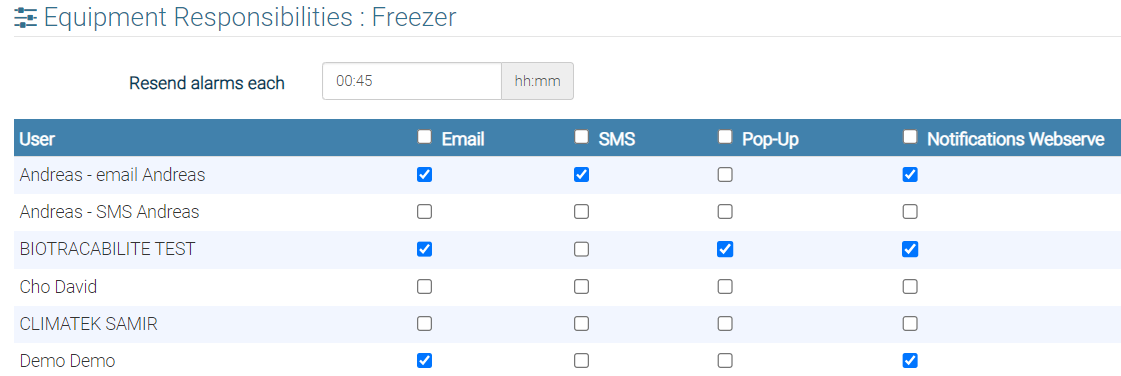
Menu: Settings -> Equipment
- Choose an Equipment
- Press the “Alarms” button
- Select from the list the users to be notified and how.
Settings menu –> Users
- Select a user
- Press the “Responsibilities” button
- Select equipment and how alarms are to be sent
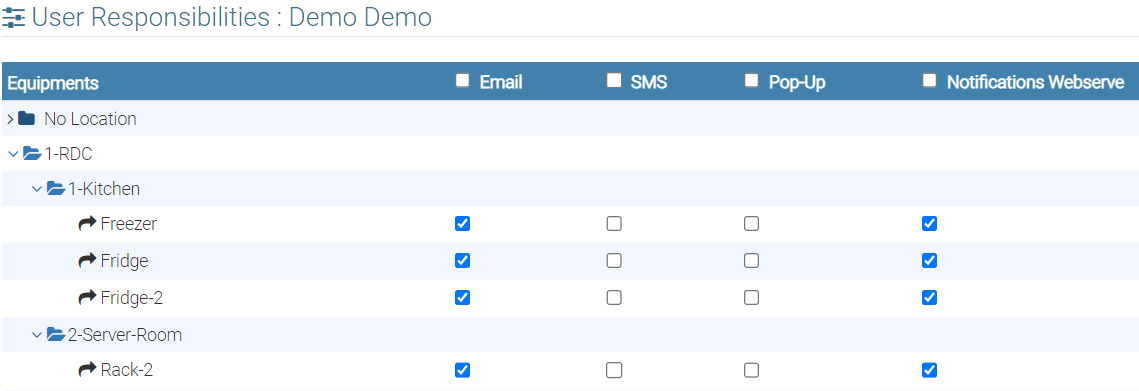 Tick the box corresponding to the equipment you want.
Alarm transmission modes
Send by Email
The person’s e-mail address must be entered in the user file. Emails are sent by our servers.
Send by SMS
The cell phone number must be entered in the user file.
Sending SMS messages consumes credits. Check your credit balance in your customer account.
Send by WhatsApp
The cell phone number must be entered in the user file.
Sending WhatsApp messages consumes credits, at the same rate as SMS. SMS and WhatsApp credits are shared: they draw from the same balance.
⚠️ Your account must have sufficient credits for WhatsApp notifications to work.
Send by Pop Up
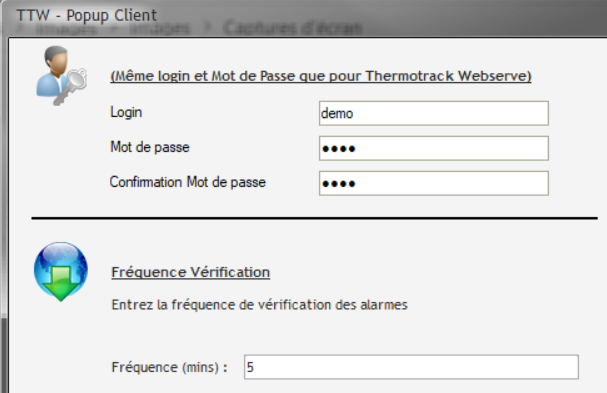
You can display audible and visual alarms on several PCs. Simply install the TTW Pop Up Client software and enter the login and password of the Thermotrack Webserve user who is to receive the Pop Up alarms.
Notifications on cell phones (iPhone and Android)
- In the Responsibilities screen, check the “Webserve Notifications” boxes
- Download the “Notification Webserve” application on Google Play or the App Store
- Open the application and enter the same login and password you use on your computer


Cascading alarms
If you specify an alarm reminder frequency, messages can be sent to a first person, then a second, then a third if the alarm is not closed after the reminder delay.
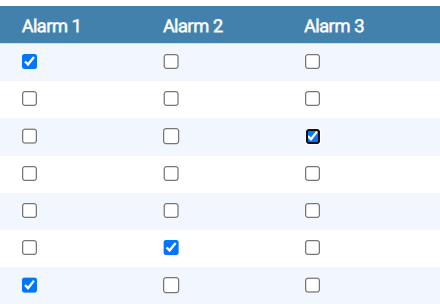
Note: A maximum of 5 reminders is possible. After that, people no longer receive messages.

