
Thermotrack PC’s calibration module can be used to correct the temperature or humidity values of a Button or Hygro Button.
The calibration of a Button can be added or modified after a mission has started. Reading the Button will read the correction value and correct accordingly.
Data of mission saved in the Database cannot be modified after calibration.
License
The calibration module is subject to the purchase of an additional license. Please contact Plug and Track or your distributor for more information. The module is already installed with your Thermotrack software. Simply activate the license. Enter the access code that corresponds to this module and your Button reader.
Add the Calibration Data
Detect the Button to calibrate
Press “Detect” to identify the Thermo Button serial number.

Enter the calibration values
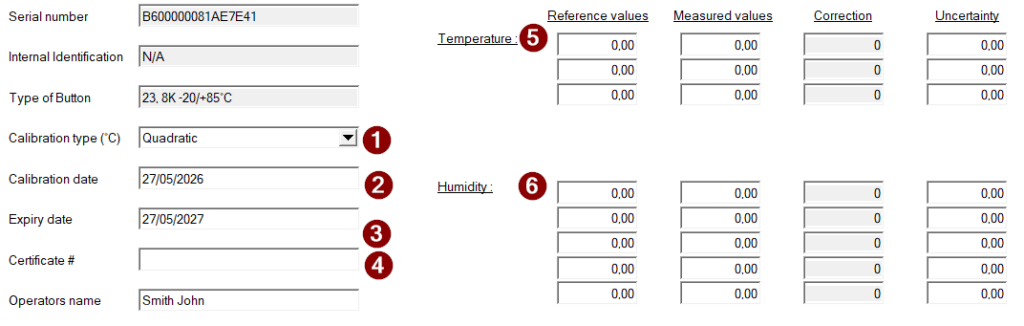
Calibration type
Enter the type of correction you prefer.
a) Quadratic correction
This is the recommended method. Based on a 4th degree polynomial, this method smooths all points over the entire temperature range.
For Quadratic correction you need exactly 3 calibration points.
b )Linear correction
This method allows calibration on 2 to 5 control points. Between these points, the correction is linear and extrapolated (the correction is also applied outside the range). It is also possible to enter only 1 point. In that case, all values will be offset.
Calibration date
Enter the date of calibration as shown on the certificate. The default calibration date is today’s date.
Validity date
The default validity period is 365 days. 30 days before the calibration expires, you will be prompted to renew the certificate each time you use this Button.
Certificate number
Enter the certificate number as printed on the certificate.
Temperature values
Enter the calibration values shown in the calibration certificate:
- Reference values (those measured by the standard)
- Instrument values (those measured by the Thermo Button)
- Uncertainties (required for customers using the mapping module)
Enter the values in ascending order.
Correction values will be calculated by Thermotrack PC.
Enter the operator’s name and a comment if required (optional). The operator’s name will be entered by default for customers using the Expert Module (CFR21 part 11).
Then press “Save”.
Thermotrack PC will write the data to the PC database. The calibration values are also stored in the Button’s memory. All readings will now be corrected according to these values.
Modify Calibration Data
This allows you to modify the existing calibration data of a Button that has already been calibrated.
- Use the “Detect” function and place the Button on the reader. Thermotrack will display the existing values.
- Press the “Modify” button and change the data.
- Press the “Save” button.
Print a Calibration Report
Select one line from the list of calibrated Buttons to prepare a calibration report. You can print the report, annotate it, or export it as a PDF.
Print a calibration report as a PDF/A
This option is only available for customers using the Expert Module (CFR21 part 11). It will create a non-alterable PDF report.
Select one line from the list of calibrated Buttons to print the calibration report.
Delete Calibration Data
This will erase calibration data from the database and from the Button’s memory. The Button’s values will no longer be corrected.
- Use the “Detect” function and place the Button on the reader. Thermotrack will display the existing values.
- Press “Delete”.
Warning : this will delete calibration data and recorded data (temperature – humidity). this will reset the Button to factory settings

